


Understanding Versioning
Modern Campus CMS stores a version of a page, asset, and binary file every time it is published and a version of Layout Builder files every time they are launched. You can also manually save a version any time you want.
Viewing Page Versions
To view page versions:
- Navigate to Content > Pages.
- Check out the page.
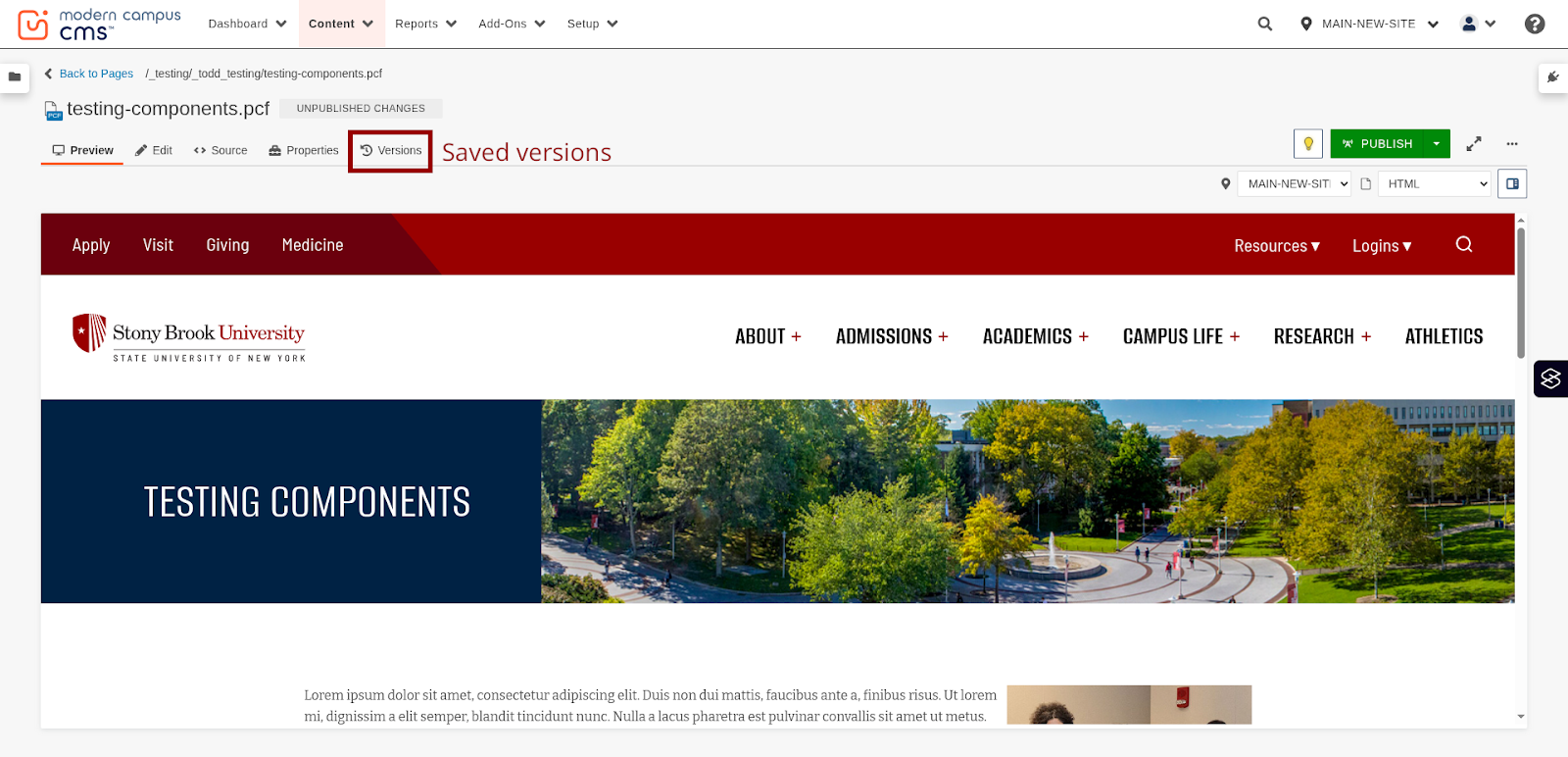
- Click Versions.
You can also compare versions while viewing a checked-out page by clicking Versions in the page actions toolbar.
Create and Save a New Version
There are times where you might make changes to a page but not be ready to publish it. If you save and don’t publish it will not automatically create a version. To protect your saved changes you might want to create a new version.
To save a new version:
- Navigate to Content > Pages.
- Check out the page.
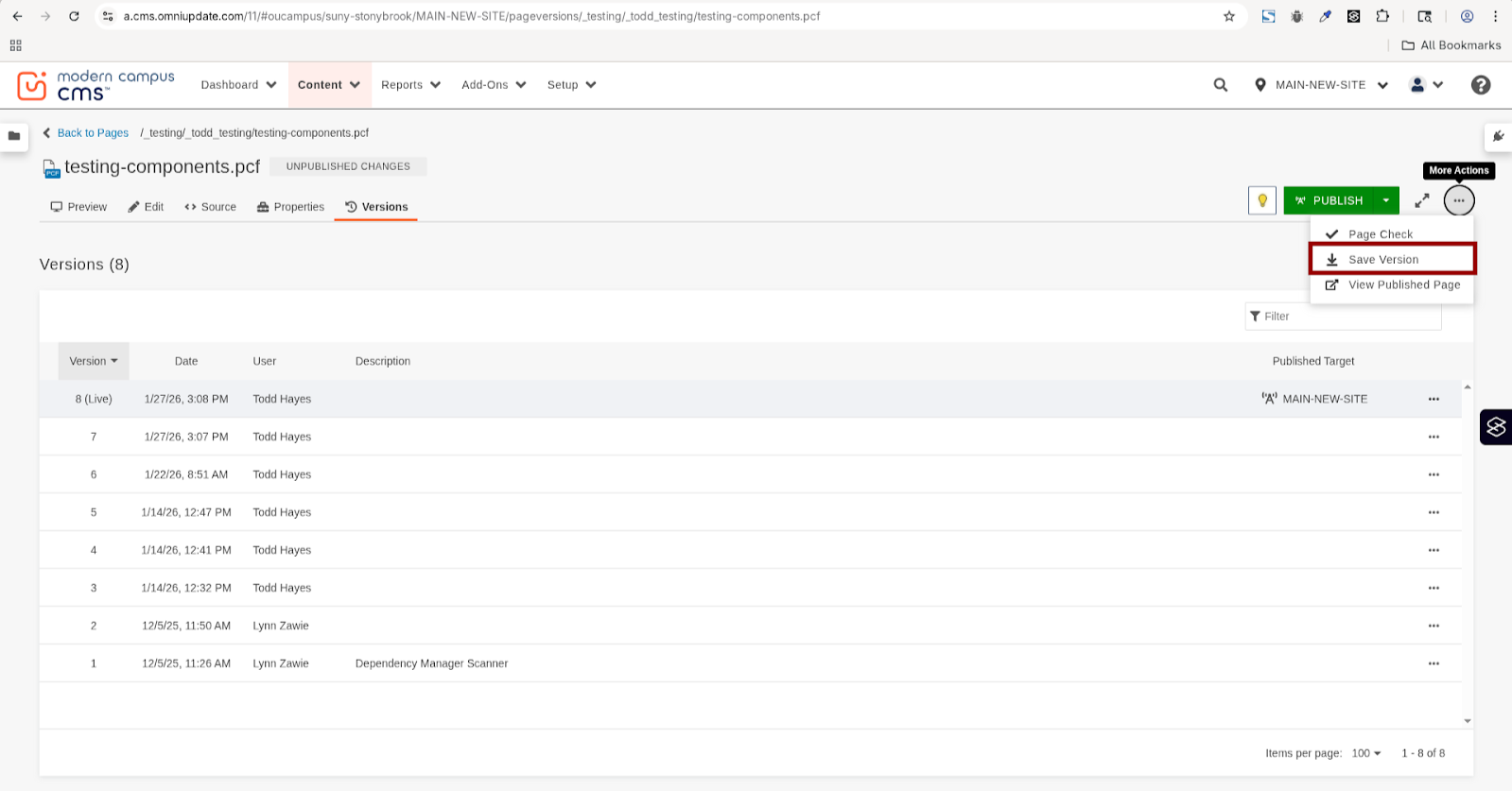
- Click the More Actions menu .
- Click Review > Save Version.
Enter a version description, as appropriate.
Reverting to a Previous Version
To revert to a previous version:
- Navigate to Content > Pages.
- Check out the page.
- Click Versions.
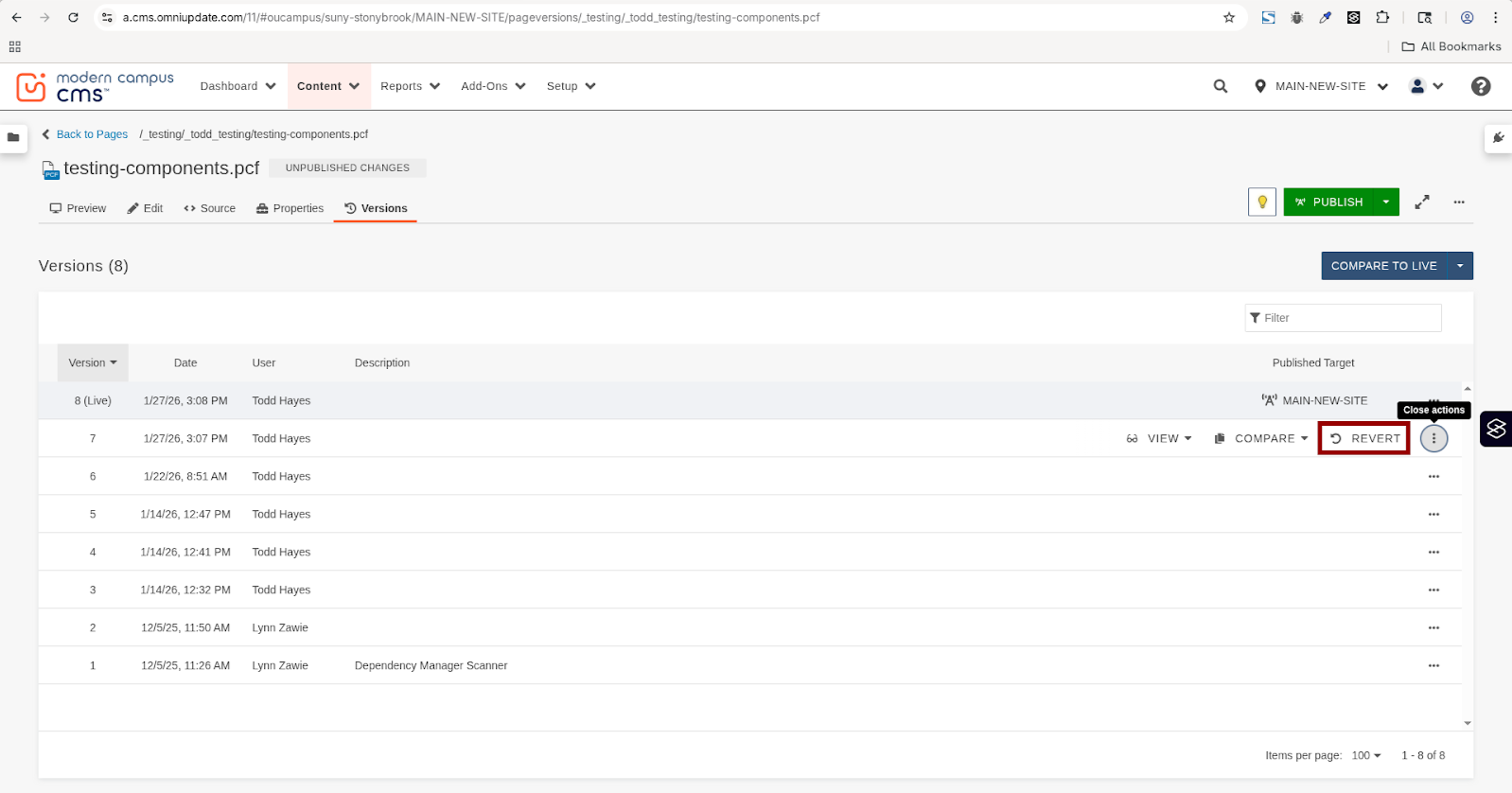
- Click the More Actions button next to the version to revert to.
- Click Revert.
Publish your page for the changes to be visible on the live website.
Comparing Versions
To compare two versions of a page:
- Navigate to Content > Pages.
- Check out the page.
- Click Versions
Select Page and choose the version you want to compare.