


Editing Images in Modern Campus
This page explains how to edit images directly in Modern Campus CMS, including resizing, cropping, and replacing images already used on pages.
You do not need external image-editing software for basic image adjustments.
Editing an Image in the CMS
You can edit an image directly from the CMS file list.
Steps
- Go to Content > Pages.
- Navigate to the folder where the image is stored.
- Click More Actions (⋯) next to the image.
- Select Edit > Image.

Image Editing Tools
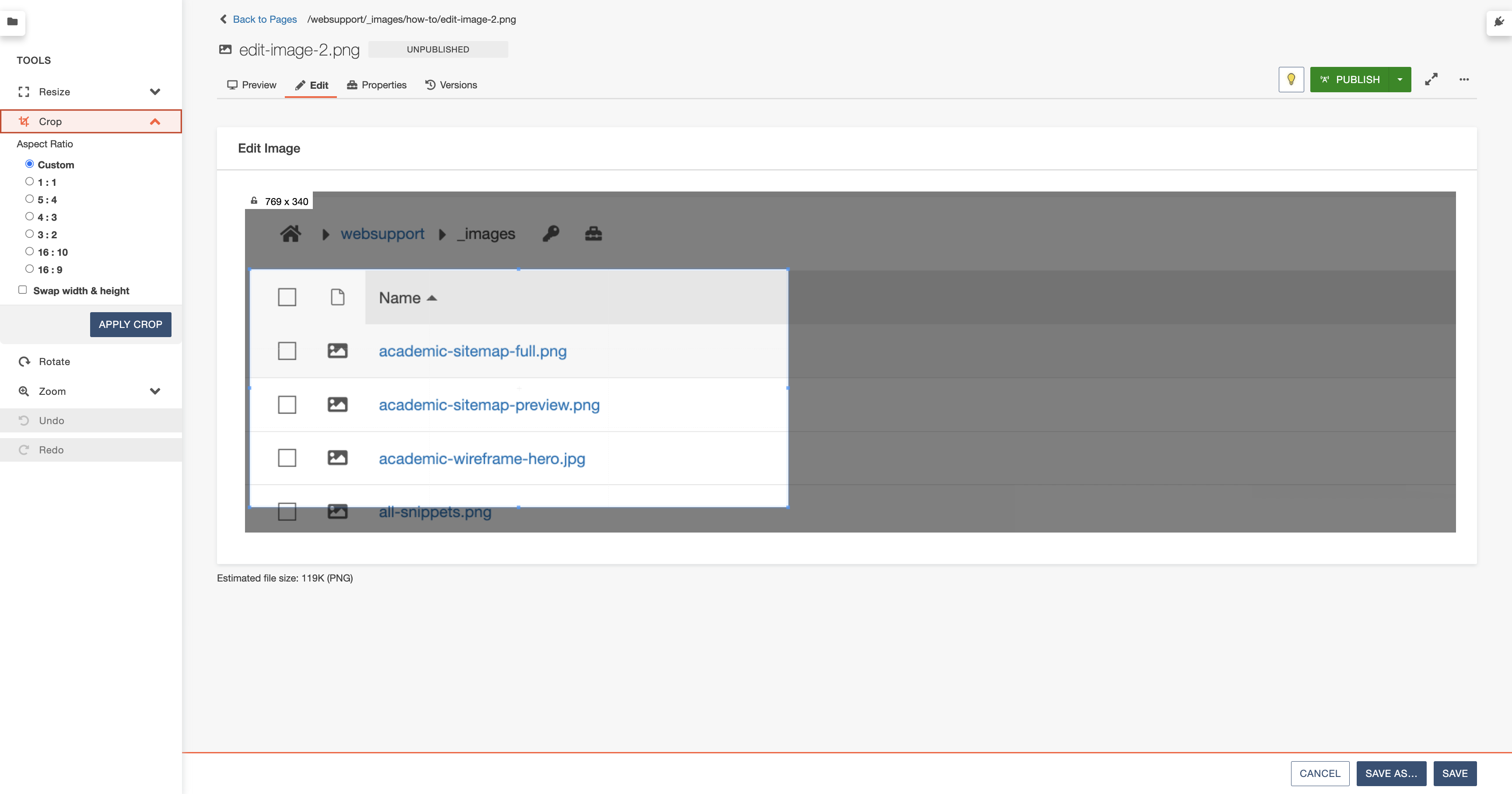
Once the image editor opens, you can use the following tools:
Resize
- Enter a width and/or height in pixels
- Select Preserve Ratio to keep the image proportions
- Click Resize
Use resize to reduce very large images before placing them on a page.
Crop
- Drag the dotted outline to select the area you want to keep
- Choose an aspect ratio if needed (use Custom for freeform)
- Click Apply Crop
Rotate
- Click to rotate the image 90° to the right
Zoom
- Use + / − or enter a percentage to zoom in and out
- Original returns the image to its original zoom level
- Zoom to Fit scales the image to the editing window
Zoom does not change the image size — it only helps you view details while editing.
Undo / Redo
- Undo your last change or redo a change you removed
Saving and Publishing Images
When you are finished editing:
- Click Save to overwrite the image
or - Click Save As to create a copy of the image with a new name
Important:
Changes will not appear on your live site until the image is published.

Editing Images from the Page Editor
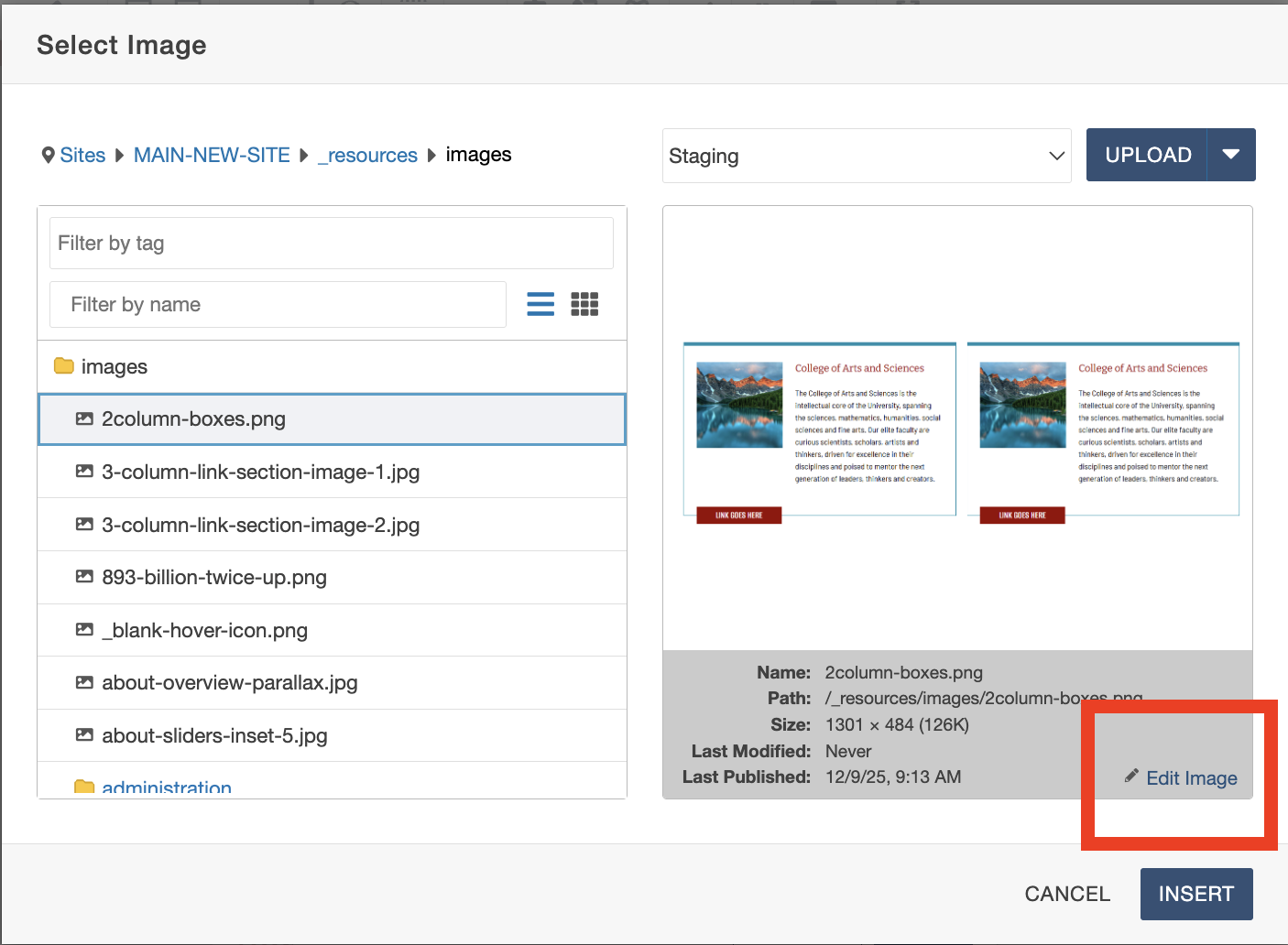
You can also edit an image while adding it to a page.
- Open a page for editing.
- Click Insert Image.
- In the Select Image file chooser, click Edit Image.
Updating Images Already on a Page
Replacing an Image
Once an image is published, any pages using it will automatically update when the image changes.
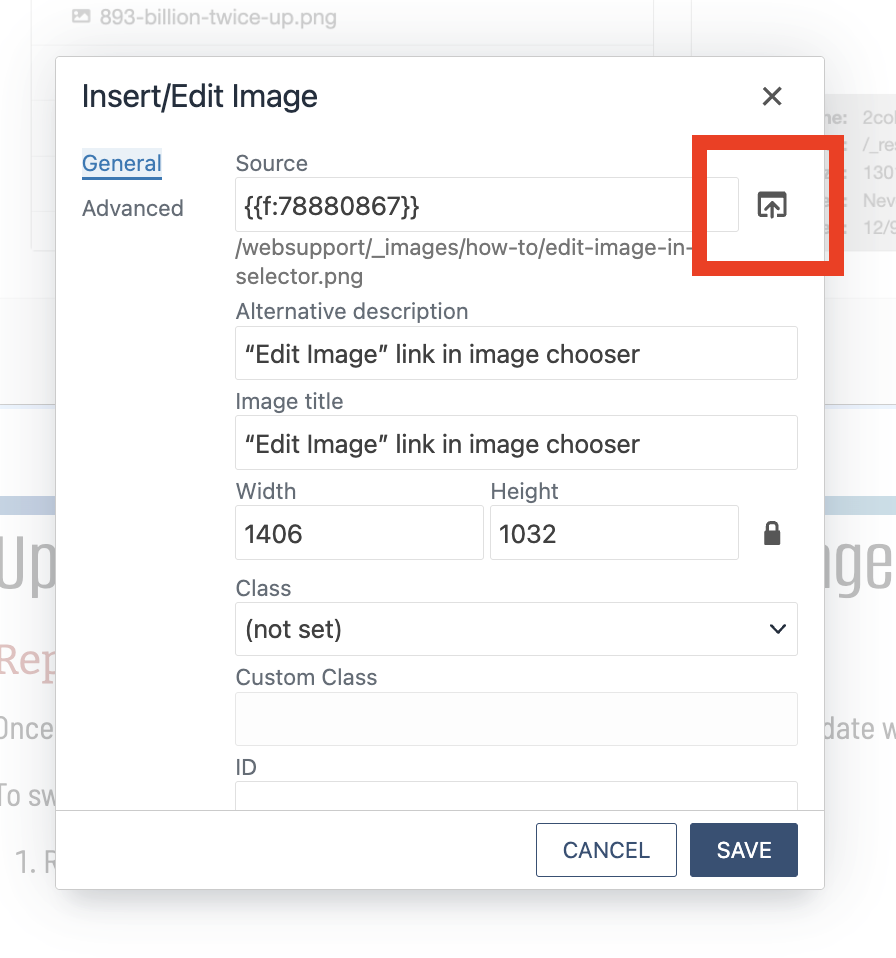
To swap an image on a page:
- Right-click the image on the page.
- Select Image.
- Use the Source file chooser to select a new image.
- Click Save.
- Republish the page.
If the new image has not been published yet:
- Check Include Unpublished Dependencies when publishing the page.
Overwriting an Existing Image (Advanced Option)
You can replace an image everywhere it’s used by uploading a new file that:
- Has the same filename
- Has the same file extension
- Is uploaded to the same folder
Once published, all pages using that image will update automatically.
Always review pages after overwriting images to ensure sizing or styling still looks correct.
Not Seeing Your Image Update?
If changes don’t appear:
- Make sure the image is published
- Clear your browser cache:
- Windows: Ctrl + F5
- Mac: Cmd + Shift + R
Browsers often cache images to improve load speed.
Tips & Best Practices
- Resize images before placing them on pages
- Avoid uploading extremely large images
- Keep image filenames clear and descriptive
- Always preview pages after image updates