


Progress Reports
The progress report functionality is a feature of Navigate, our student success management system used by over 300 advisors, faculty-advisors, and support staff at Stony Brook University.
Progress reports allow instructors to quickly and easily select students that are "At-Risk" of failing or not engaging in their classes. Progress reports are sent out during strategic times throughout the semester to help students succeed in their courses with the feedback from their Professors.
|
PLEASE NOTE: You do NOT need to select every student. To save time, select only the at-risk students on your form, and then click this button
at the bottom of the progress report when you are done: |
Step 1
Click on the link in the e-mail you received to begin entering feedback. 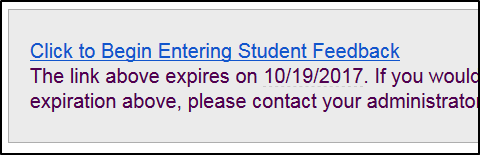
You will be brought directly to the progress report:
*The actual alert reasons might be different from the pic below.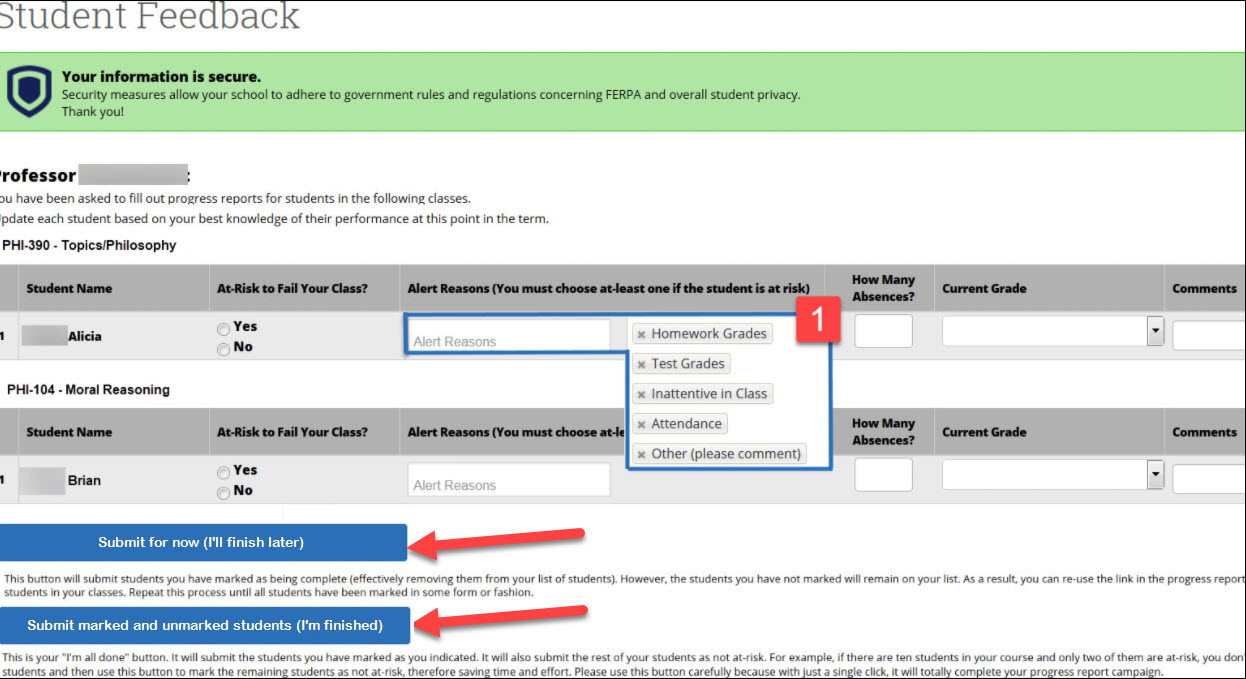
Step 2
Select only the students in danger of failing the class by clicking "yes". If you
do not have any students in danger of failing on your list, please go to Step 3 below.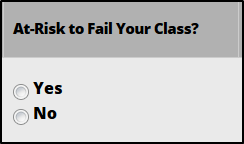
Please select one or more reasons:
*The actual alert reasons might be different from the pic below.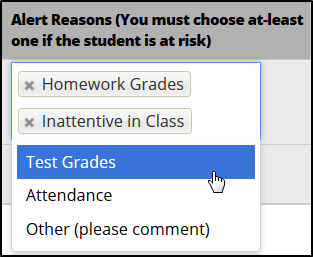
Step 3
At the bottom of the progress report, you can submit the form by clicking this button.
This will mark the students you selected as "at-risk" and all the students you left
blank will be marked as "not-at-risk".
You can also submit a few students at a time and come back to the email link at a
later date to finish (before the form expires):
We encourage instructors to submit progress reports before the deadline to ensure a personalized approach for each student to connect them with appropriate resources that support their progress in your course.
You can also submit progress reports at any time in the semester by logging into Navigate. These will notify the student’s assigned advisor directly. Instructions below:
1. Log into Navigate at www.stonybrook.campus.eab.com
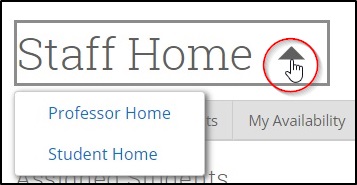
2. If necessary, select "professor" role.
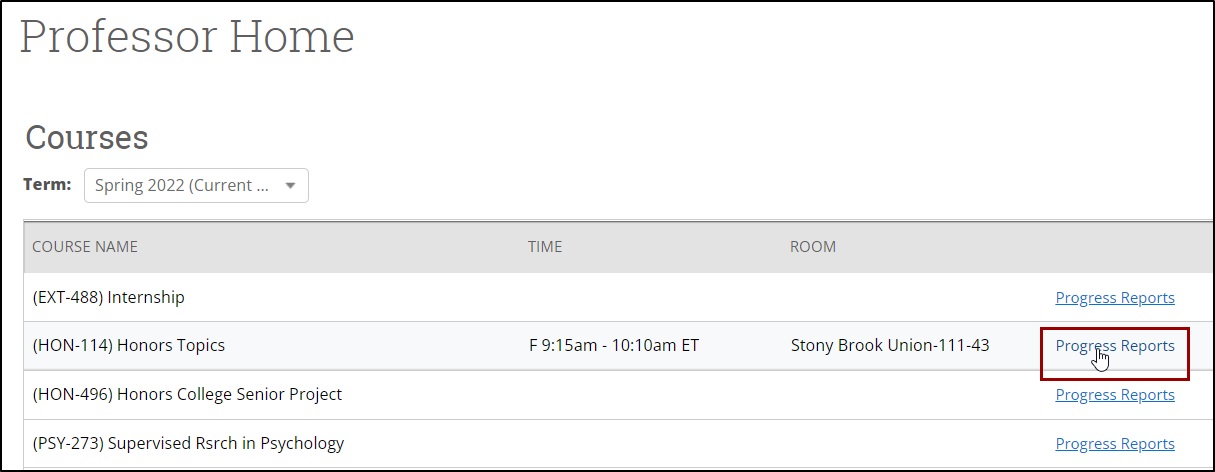
3. Click on the "Progress Reports" button to the right of the desired class.
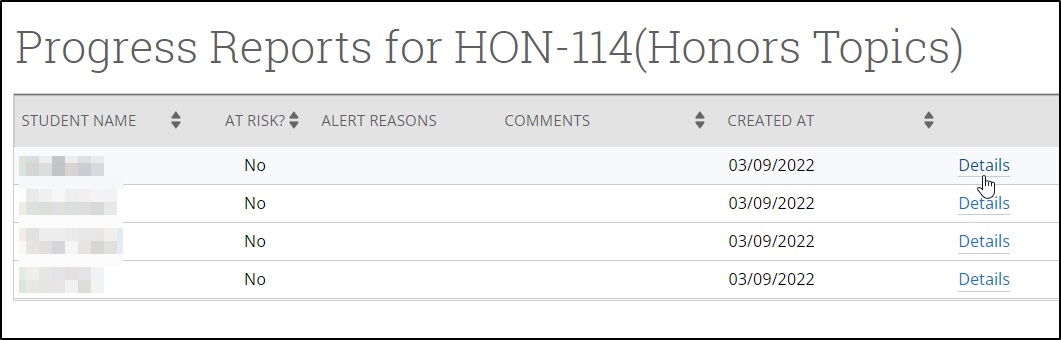
4. *You can see (and edit) any progress reports you recently submitted at the top of the page.
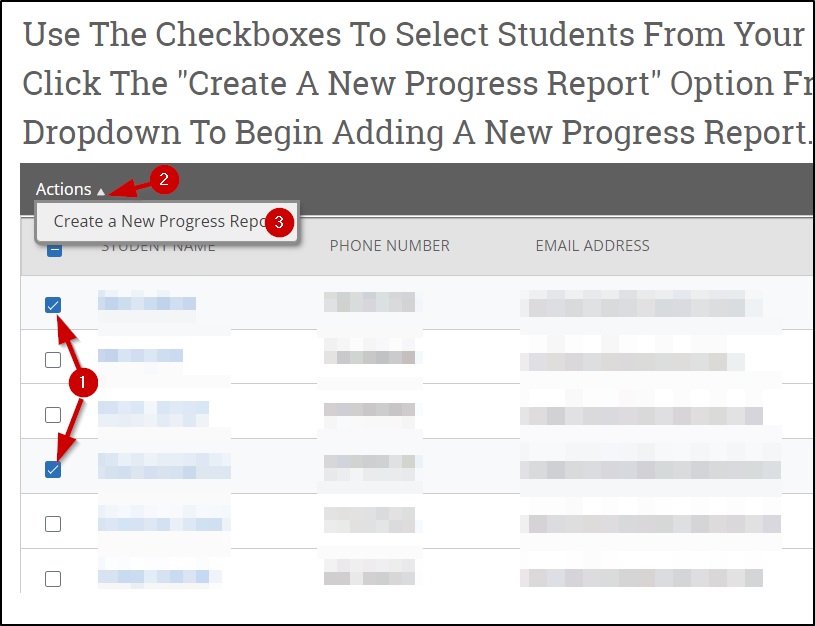
To create a new progress report, select a student (or multiple), click on "Actions", and click on "Create a New Progress Report".
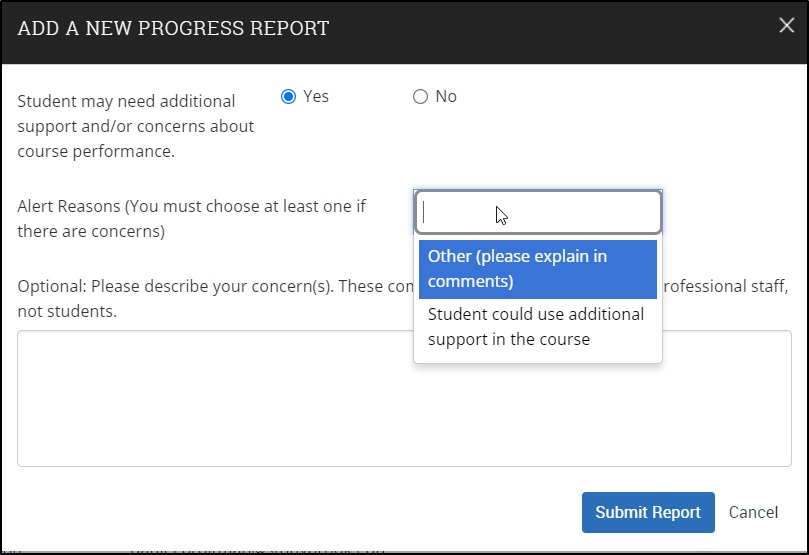
*The Alert Reasons will only appear if you selected "yes" for the question above.
*Comments you enter in the text box will only be viewable by professional staff, not
students.
*If you had selected multiple students, the same progress report will be submitted
on all of them.
You can see all of the students you recently submitted a progress report on in Navigate.
Progress reports activate a network of academic success areas on campus. These reports from faculty members lead to a personalized approach for each student. Some examples of how we use progress reports to support students could include:
- Outreaching to students to discuss a strategy for success.
- Connecting students with appropriate resources on campus depending on the student's circumstances.
- Encouraging students to discuss their performance with instructors and attend office hours.
We ask for your continued support in our efforts to bolster student persistence and overall success by completing the progress reports. As a public institution, our increasing graduation rate is more than just an administrative metric; it represents about 3000 additional students annually who have graduated on time and whose lives are potentially transformed by earning a college degree. This feedback allows the coordinated care network to activate earlier for students who may need extra support.
The Progress Report deadlines are set specifically around Academic Calendar deadlines. We want students to be able to use all the resources available to them such as GPNC or the withdrawal option. For more information on student assessment, please click here. We also understand there are a number of variables that factor into a final grade, and students' performance at the time of the Progress Report may not reflect the final outcome. We know you are working hard to support your students and this provides an opportunity for us to check in with them.
The pool of students can vary each semester. Intentional thought goes into choosing which students would benefit from a network of academic success areas on campus for that given semester. Generally, full class rosters are requested for select student groups (Athletics, EOP, Veterans, etc.) and class rosters for select courses (usually math and science). We also include a cohort of Finish in 4 students.
No. Just mark the students at risk. When you are done, click the button at the bottom of the page. This will submit all of your selected at-risk students and mark the blank ones as not at risk.

Please click on the button at the bottom of the page. These positive progress reports will be viewable for advisors to see in Navigate.
Yes. After selecting some of your students who need extra support, click on the button
below. This will submit the students you marked for needing extra support and leave
all other students. You can get back to the progress report by clicking the link
in the email you received.
Please remember to finish submitting for all of your students prior to the deadline.
When you are done, click the button below:
We only need one response to the inquiry. Please discuss with your co-instructors to determine who will submit the Progress Reports on behalf of your class.